Stripe Payment Element with Intents
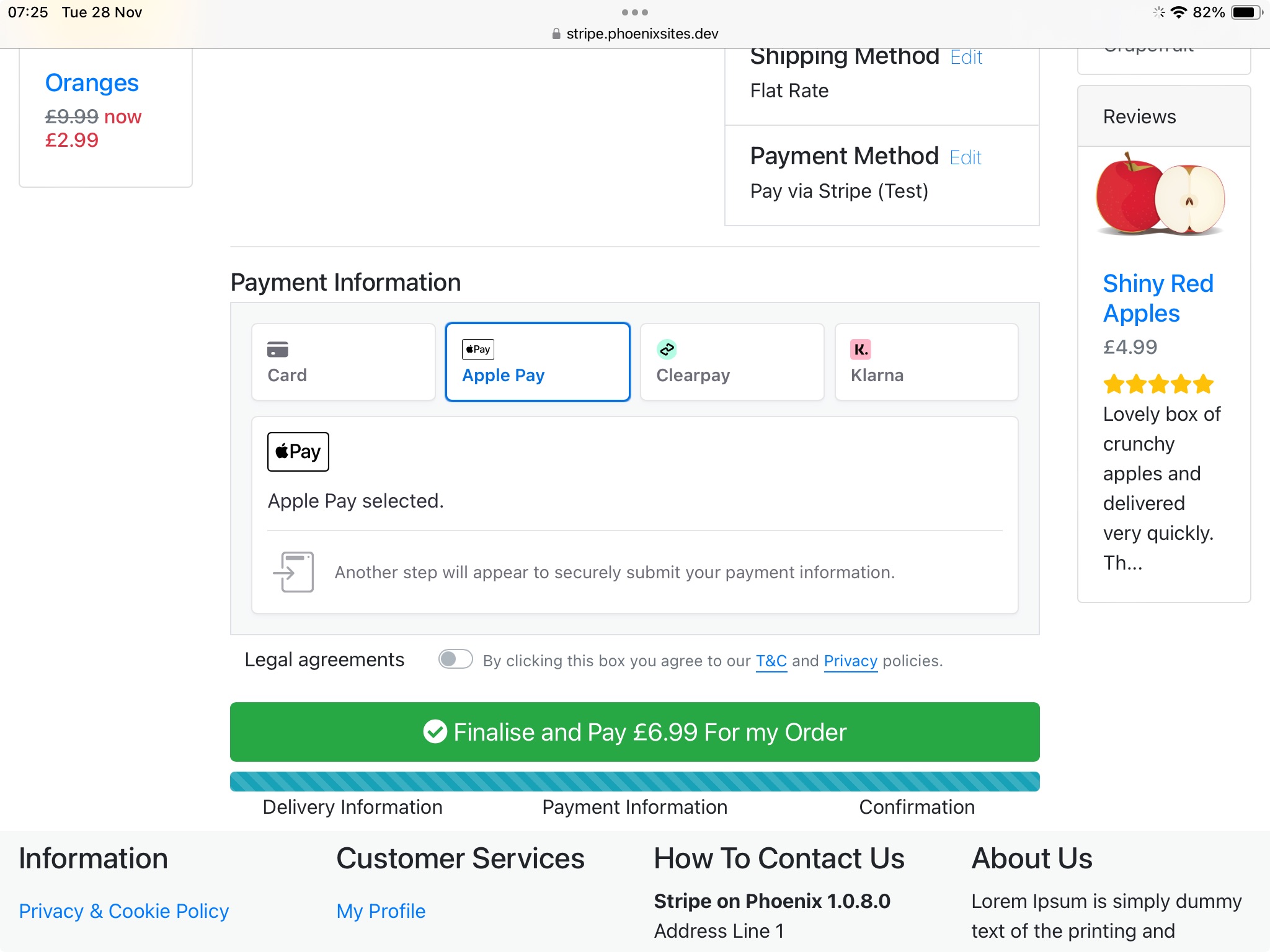
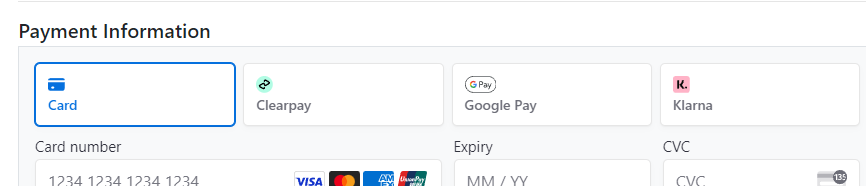
This module is intended to accept any payment method configured in your Stripe dashboard using Stripe's Payment Element. It has been tested with both syncronous (instant confirmation) and asyncronous (confirmed later) methods but the availability of these varies by country so if you intend to use one that's not listed as confirmed please let me know so I can support you in running up a test store to try it out.
PAYMENT METHODS CONFIRMED WORKING
- Cards
- Klarna
- Clearpay
- Apple Pay
- Google Pay
- Revolut Pay
- Paypal
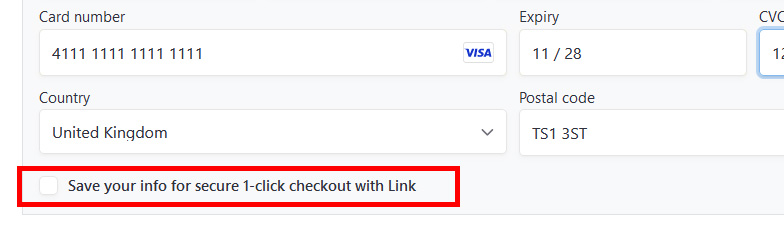
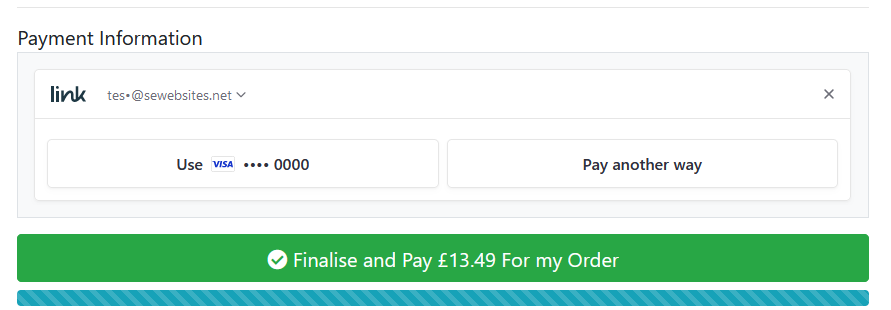
- Link (cards saved with Stripe)
- Swish
TESTING APPLE PAY AND GOOGLE PAY
Even when you have selected these payment methods in your Stripe account and for Apple Pay added the merchant association file (see installation instructions) these methods are only displayed in checkout when they can be used.
- For Apple Pay, this means you need to be on an Apple device that's modern enough to support it and it must already be set up.
- For Google Pay you need to be on an android device with Google Pay set up or on a computer using Chrome logged into a Google account with Google Pay set up or with cards saved in the browser. Some further browsers now support Google Pay for saved cards e.g. Firefox, Edge but I have found Chrome to be the most reliable in offering Google Pay for testing.
SETTINGS
Transaction Server
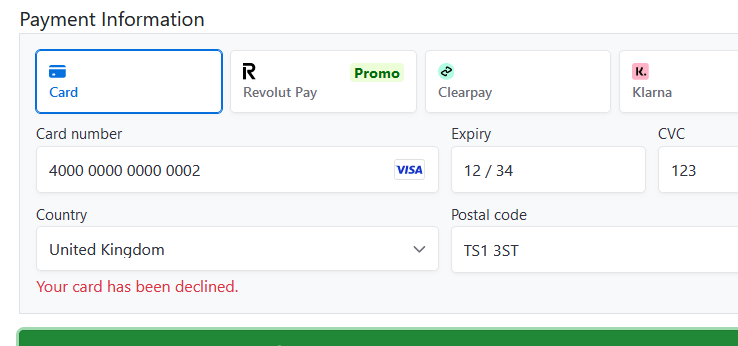
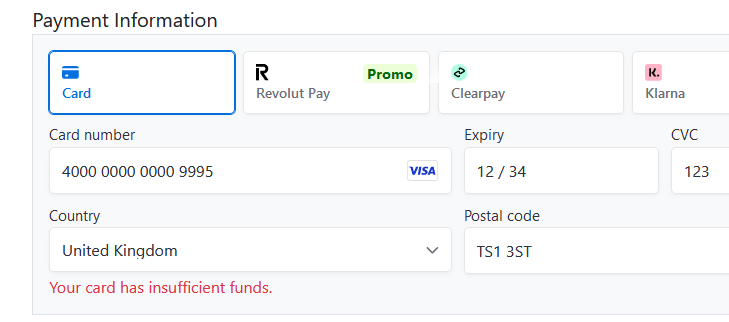
If you want to have this module set up in a development version of your store, or want to do some testing prior to taking live payments, set the transaction server to Test and fill in the Test Publishable and Secret Keys from your Stripe account (under Developers, toggle the Test switch to on in the top bar). You can find test values to use here (scroll down for other payment methods like BACS and Link) https://stripe.com/docs/testing?payment-method=others#regulatory-cards
When you save your settings for the chosen environment, the site's webhook url is registered with Stripe and the generated webhook secret is recorded in your site settings. Most of the time, this is all that's needed but there are some manual webhook actions in case it stops working.
You can test the saved settings with the Connection Test button. Manual webhook actions are described below.
Event Logging & Debug Logging
Event logging writes information about the stripe API calls and responses and webhook events to the database. It's recommended to leave this on. Writing a page so you can browse them in admin is on my ToDo List.
Debug logging writes fairly detailed debugging information to your error log file. Don't leave it turned on in a live store or the error log will get huge.
Webhook Site ID
If you set this, the webhook will ignore any events it receives that don't have a matching Site ID. This is intended to help with the situation where multiple shops are connected to the same Stripe account by avoiding any confusion with the same order id or customer id being used in multiple stores. If you change this while you have orders that are processing, you won't get those ones completed automatically. If you have other Stripe addons installed, although the webhook for this addon will ignore events from their orders if the Site ID is set, the reverse is not true and things could get messy.
Notify Ignored Events
When set True you get an email for events that are not processed. Set on if this is the only store connected to your Stripe account and this is the only Stripe addon in use because they indicate something is wrong:
- when the Site ID on the event does not match the setting
- when the event says the payment succeeded but the order is not found
- when the intent id saved on the order does not match the id in the event
- when the event type is unexpected
Confirmation Button Class
The module adds javascript to the checkout confirmation page which disables the pay button until the element is complete, prevents double-clicking and changes the appearance while something is happening. By default it uses the btn-success class to select the button. If your checkout confirmation page does not have that class, change this setting so the button is handled properly.
Restrict Methods
If you don't want to offer all the payment methods configured in the Stripe account, put in this field the list of those that you DO want to offer, separated by commas. This needs to be what Stripe calls them, e.g. klarna,afterpay_clearpay,link,bacs_debit
To get the full list of those you have enabled in Stripe, turn on Debug Logging and go through checkout to the confirmation page, choosing this module for payment. Find a logged payment intent in the error_log and search for the value payment_method_types.
Requires Action Reject
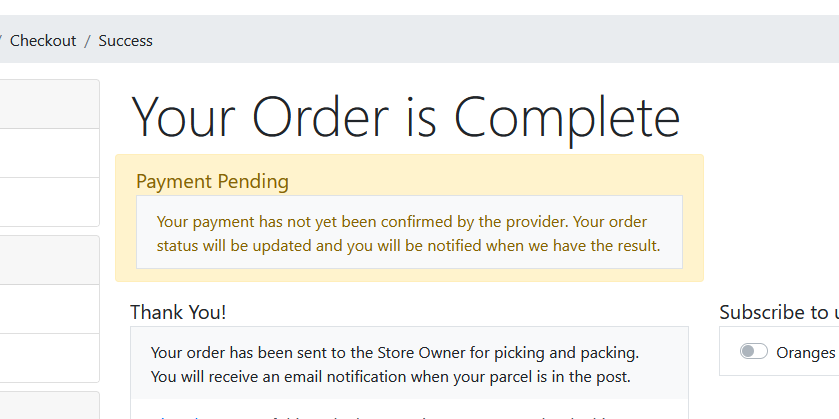
In the normal course of things, when a payment method being processed in an overlay returns the status ‘requires_action’, that means that the customer needs to do something (confirm a request, finish a credit application by uploading some ID etc). In those cases, the order is recorded (in the status you set in the relevant config option) and will be updated by the webhook later according to the final outcome.
However at least one payment method returns ‘requires_action’ when the customer actually cancelled the request in the overlay (Swish). This setting lists any methods where the correct response to ‘requires_action’ is to return the customer to the checkout to try again.
Apple Registration
This shows the results of automatically registering and validating your domain. If you're good to go with everything including Apple Pay, you get a green apple. A green tick suggests you haven't done the merchant association file (see installation). A red cross probably means your keys aren't properly set for the currently selected environment.
Manual Webhook Actions
Delete & Recreate Webhook
If the secret of your webhook is regenerated, the config setting will no longer match. The stripe API only returns the webhook secret when one is created so this action deletes the existing webhook, creates a new one and saves the secret. This is normally enough to resolve issues with the webhook secret.
Manually Set Webhook Secret
Rarely a webhook secret issue cannot be resolved by deleting and recreating as above. This action lets you copy and paste the secret from your stripe account.