


General Help: How To Install A Zipped Plugin
Help for a specific addon is to be found on the product page (buttons for Installation Instructions and User Guide). This page is general help to get you in a position to be able to install it.
Until I find time to update my one-click installer to the new admin, plugins are only available as a zip file download. This page is intended to help you get them into your store. Having done it once it will be straightforward. Here are the basic stages:
- Download the plugin zip.
- Unzip the plugin on your local computer. The files are all presented in a folder structure that matches the structure of your store folders.
- Copy the files from your local computer into their matching locations on your web server. More details for phoenix n00bs on this below (see It's my first time, be gentle with me).
- Install the plugin. If it's a module (e.g. payment, shipping, cartmart), go to the folder icon in admin (the modules menu) and choose the corresponding entry. It shows a list of the modules already installed; hit the Install button to get a list of modules on your server but not installed and you should find your uploaded module in the list. Choose it and press Install Module.
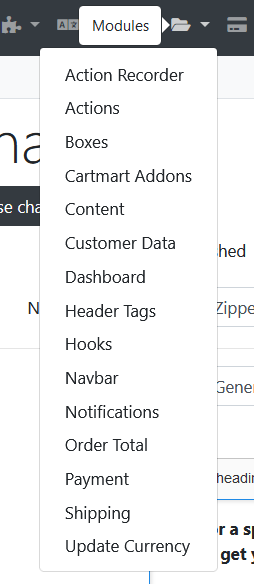
Where do I get my download?
You should have been presented with a download link at the end of checkout. If you weren't or have closed the page since, log into your account on cartmart.uk and check out the account menu:
- hit My Products and choose it from the list
- in the unlikely event that you can't map the addon code to the name of the thing you're after, go into your order history and open the order; download links for the products in the order are displayed below the order history.
Please note that the file linked in your account order history will get updated with new versions, so you can go back there to download updated versions.
Uploading
If you are likely to install a few plugins (or even just one big one) then you will find it easier using an FTP program instead of uploading with the file manager in your hosting control panel. Read about them in the Phoenix Wiki. On the other hand if you just want to get on with it, head over to your file manager. Some of them let you upload a whole folder at once; try that if you can which is much less hassle. If it doesn't do that you will be researching FTP programs before you've finished installing the first plugin.
It's my first time, be gentle with me
OK. The file manager will open in the top of your site. More often than not, the top of your site is not publicly available - look and see if there's a folder in it called public_html. If so, your domain is actually served from that folder.
The next thing to know is - where is the shop installed? It may be straight from that folder (like this site cartmart.uk) or it may be installed in a subfolder e.g. mydomain.tld/shop/
Here's an example; this shop is installed in oscommercesites.com/phoenix

And your unzipped plugin will look something like this:
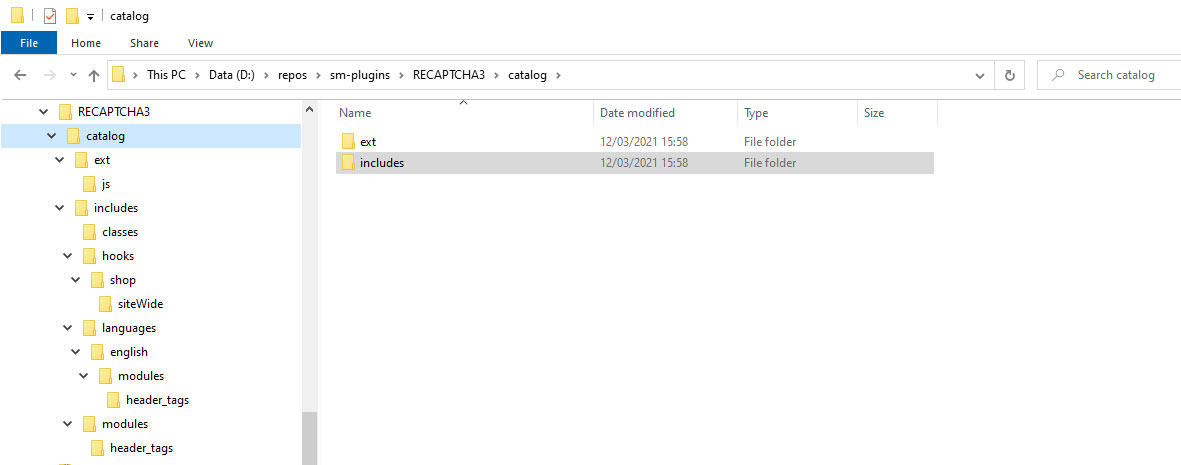
…where the folder ‘catalog’ represents the folder in which your shop is running.
So if I were installing this plugin into the shop on oscommercesites.com/phoenix, I would need to copy the two folders ext and includes (and all their contents in the same structure) into the folder …/public_html/phoenix/ on the server.
BUT BEWARE OF THE ADMIN FOLDER NAME
If you chose to use a different name for your admin folder, which is a VERY GOOD THING, if the addon zip has a folder called admin, then make sure to copy the contents into your differently named folder.
If your hosting file manager won't do all this copying in one or two simple operations but forces you to navigate down through all the folders on the server to copy each file into the right place, you need to get an FTP program - see wiki link above.
