Copy the folders under catalog into your shop directory.
If you are going to enable Apple Pay, you need to create the folder .well-known under your domain root if it doesn't already exist.
Next you need to set up an app in your square account for your phoenix payments. Log in at https://developer.squareup.com/ and press Get Started.
Press + to add an app; the name you give it will be shown to customers so make it friendly e.g. mydomain.com payments.
If you are going to accept payments through Apple Pay, click on Apple Pay in the left menu so that you can add the domain(s) where you want to do so. If you want to use the module in test mode you need to add the Sandbox domain as well as the production (using the toggle above the heading Apple Pay).
When you add the domain, download the verification file apple-developer-merchantid-domain-association and copy it into your .well-known folder
then verify your domain.
See user guide for a run through of the module settings.
Module Installation - Unmet Dependencies
A check is run on installation to make sure that all the customer fields used by the module are installed in your store. If it fails the module is not installed until you remedy this. A typical example is telephone number which is not installed by default but required by square. If any are flagged, install them using Modules / Customer Data and afterward go back and install the payment module. Example message:
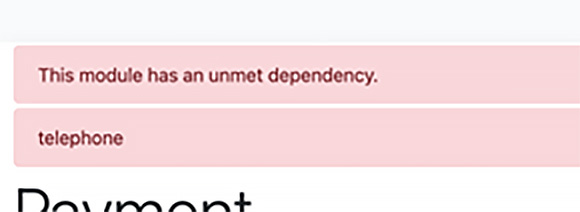
If you get this exact message, in admin go to: Modules > Customer Data
Hit Install Module button on the right
Choose Telephone in the list and hit the Install Module button.
Once installed, make sure Require Telephone module (if enabled) is set to True