User Guide
There are two elements to setting up Country of Origin tariff charging:
1. Set up the origin countries of the catalogue
2. Set up the tariff rates
You can do this in either order. The country menus on each of the screen can be switched between lists of all countries and lists filtered on the countries already being used.
Setting Product COOs - Suggested Strategy
The best performance for your checkout (for US customers) will be achieved by setting COO on each individual product. This is because it does less work if the countries are gathered up along with the products. If you have a lot of products this could take a while to complete, so you can also set default COO on categories. During checkout, if there's no country against the product it will read up the tree until one is found. This will also catch new products added later if they don't get a COO set.
COO Tariff Table
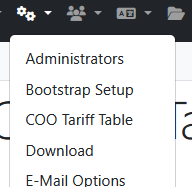
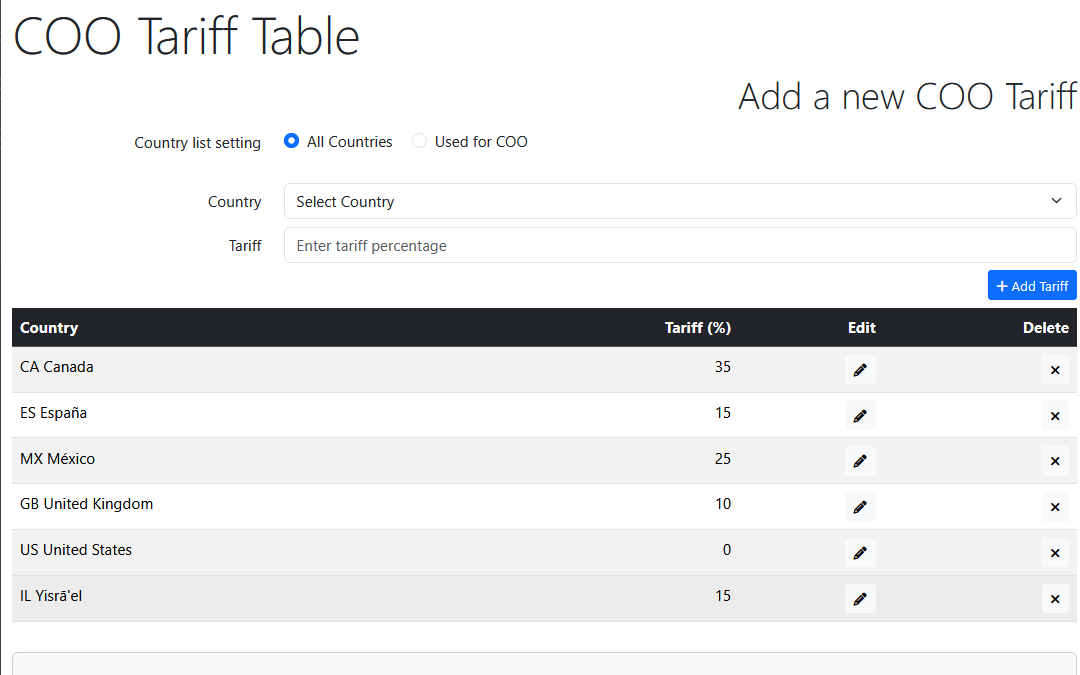
This page is found on the configuration menu. Its function is to record tariff rates against countries, which can be used to add charges in checkout. I recommend only setting up the countries that you need, which will make it easier to check for changes periodically. You can choose to apply the full rate charged on import to US or to charge less and take a hit on it.
The Country list setting radio buttons let you choose the content of the list used when adding a tariff. The choice is between having all countries in the list or only those that have been used against products or categories. In either case the list doesn't include those that already have a tariff.
COOs on Categories
There is an additional field on the category display and edit pages for setting the COO.
You can set COO against categories at any level. When the order total module needs the COO of a product, it checks the product itself and if there's not one, reads up the category tree until it finds one. This feature is intended for use where most products in a category have the same origin and it catches any that are missing. It's not recommended as a strategy to avoid setting them against individual products, especially on sites where orders can get quite big, as that could slow down the checkout.
Product COOs
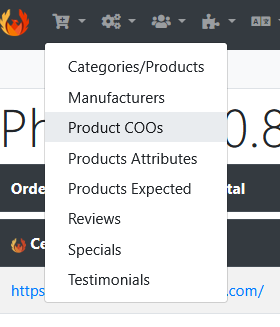
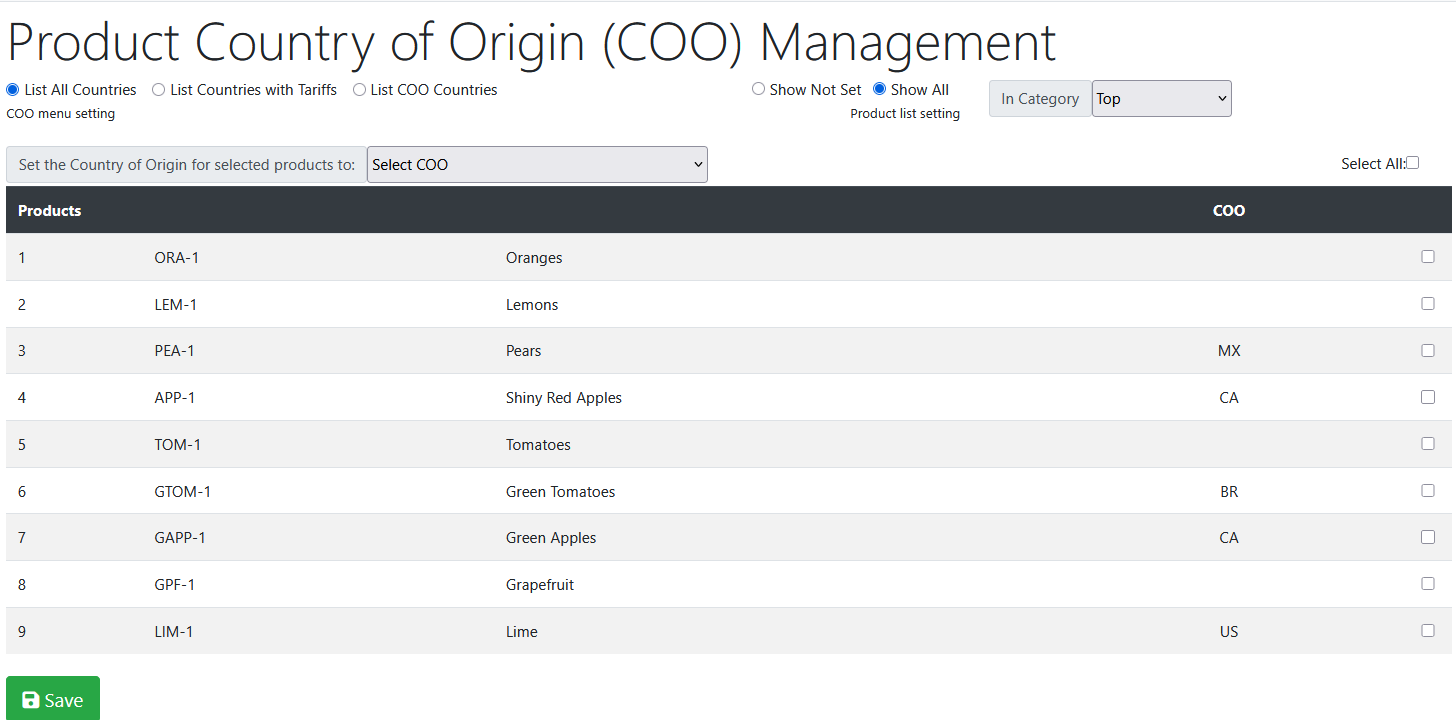
This page is found on the catalogue menu.
The country menu setting on this page works as follows: all countries / countries with a tariff rate set in the table / countries which have already been used as an origin
The product list shows all products under the category selected, right down the tree. You can choose between only showing live products or all of them, and products without a COO set, or all of them.
Module settings
You can enable / disable all of this at a stroke.
Apply US customers lets you choose whether to charge only US customers (for stores outside US) or all customers (for stores in US)
Apply Country of Origin Rate calculates a charge based on the percentage set in the COO Tariff Table.
Handle Missing COO: when true uses zero, when false shows a RATE MISSING text.
Apply store country rate adds a charge based on the rate for your country (kept for completeness, probably not required).
Apply emergency rate (and the rate setting) lets you add a defined flat rate across all origin countries. If Apply COO Rate is true, this will be added to the rate for the country, so if you're looking to set a flat rate only, make sure to turn off Apply COO Rate. The emergency rate will be applied to US origin products unless the following setting is true:
Exclude US from Country of Origin, when set true flat charges will not be applied and there's no output for the US tally.
Admin Percent Fee adds a fee calculated as a percentage of the calculated tariff due. Set to zero to disable.
Admin Flat Fee adds a flat fee (set in the store's default currency). Set to zero to disable.
Tax Class - probably only applies to stores in US; you can add tax on the charge if required.
The following settings affect the layout of the order total output on the order.
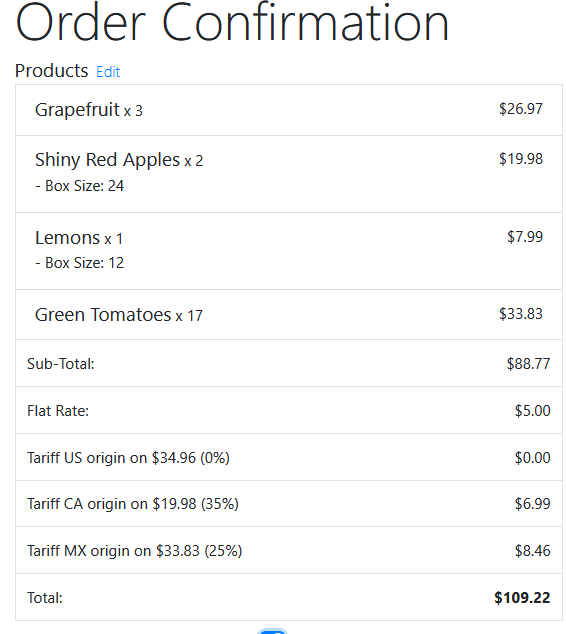
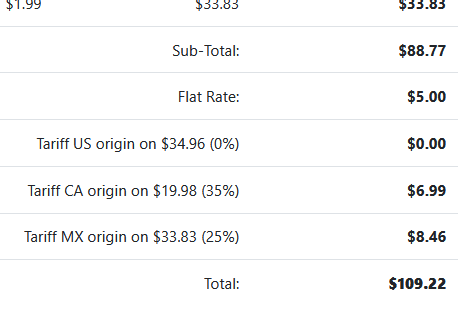
Separate Lines outputs each origin country's charge in its own line.
Show COO Totals shows the tally of each country if separate lines enabled.
Show rates shows the rate used for each country.