Cardnet Connect User Guide
If you want to run the module in test mode so that you don't have to take real payments and refund them, you need to request access to the test environment; use the contact details on https://www.lloydsbank.com/business/take-payments-with-cardnet/online-payments/developers.html
You can't use real card numbers in the test environment. When the module is configured for the test server, a link is displayed in admin to the page with test card numbers.
Additional Payment Methods
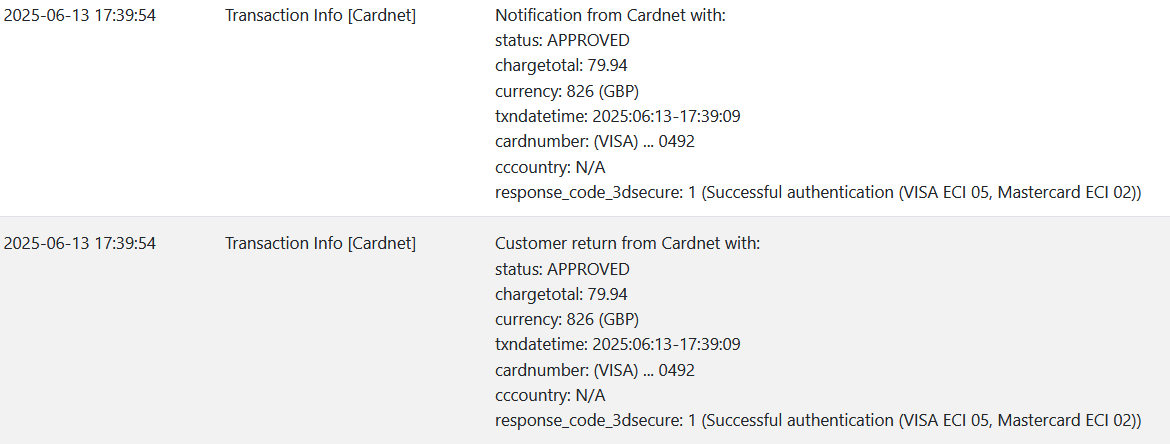
It is possible to configure your Cardnet account to receive payments by additional methods beyond cards, such as ApplePay, GooglePay, bank transfer and so on. As of June 2025, configuring these methods is a largely manual and extremely onerous process which does not look worth the effort - I suggest configuring an additional provider like Stripe or Paypal whose integration is much slicker. Some additional methods are asynchronous, which means that you don't know straightaway whether the payment has been taken successfully or not, but need to wait a while for it to "clear". In these circumstances, the order will be set to the Payment Pending status, and when the result is known the order status will be changed by the notification from Cardnet; either to the normal successful status or to the Payment Failed status.
Settings Overview
Store ID & Shared Secret (Live and Test)
These credentials are provided by Cardnet, copy them into the settings. The Store ID is also called Store name in Cardnet documentation. It is a public identifier for your account. The shared secret should be kept secret. It is used by both the module and Cardnet to calculate hashes which are checked to ensure that the data being transferred back and forth really originates at the appropriate server and has not been interfered with.
Confirm Button
The module intercepts the submission of the form on checkout confirmation so that it can record any comment made against the order before the customer is transferred to Cardnet. The class in this setting is used to find the button in that form as part of this process and works with core code. If you have removed the class (e.g. to change the appearance of the button), put the new class here. If it's not unique within the form, add an extra class to the button (e.g. btn-confirm) that you can use.
Site Prefix
The module sends the order id to Cardnet to identify the transaction. If you connect multiple sites to the same store id in Cardnet, these ids will not be unique so set site prefixes. If you don't, you may get customers failing to transfer successfully to the hosted payment page if the order id has already been used.
Multi-Currency Override
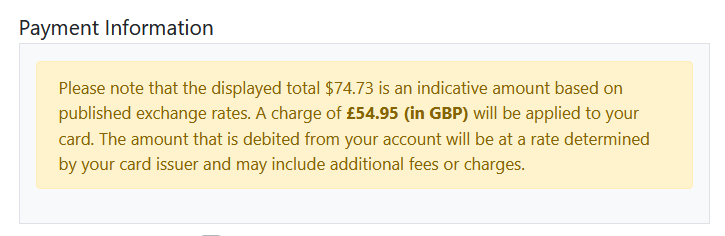
Sometimes a site owner displays multiple currencies on their web site but only has one currency set up at their card processor. This is not in keeping with consumer regulations in many jurisdictions. The normal behaviour of the module is to send the payment in the displayed currency, however if the currency is not set up at Cardnet, the customer ends up back at checkout payment with a generic error message. In these circumstances, you can set an override currency here and the module will always send payments to Cardnet in that currency, and displays a warning on checkout confirmation with the actual amount and currency being processed.