Braintree Payments User Guide
There are a couple of points to highlight in case you don't get into the details below:
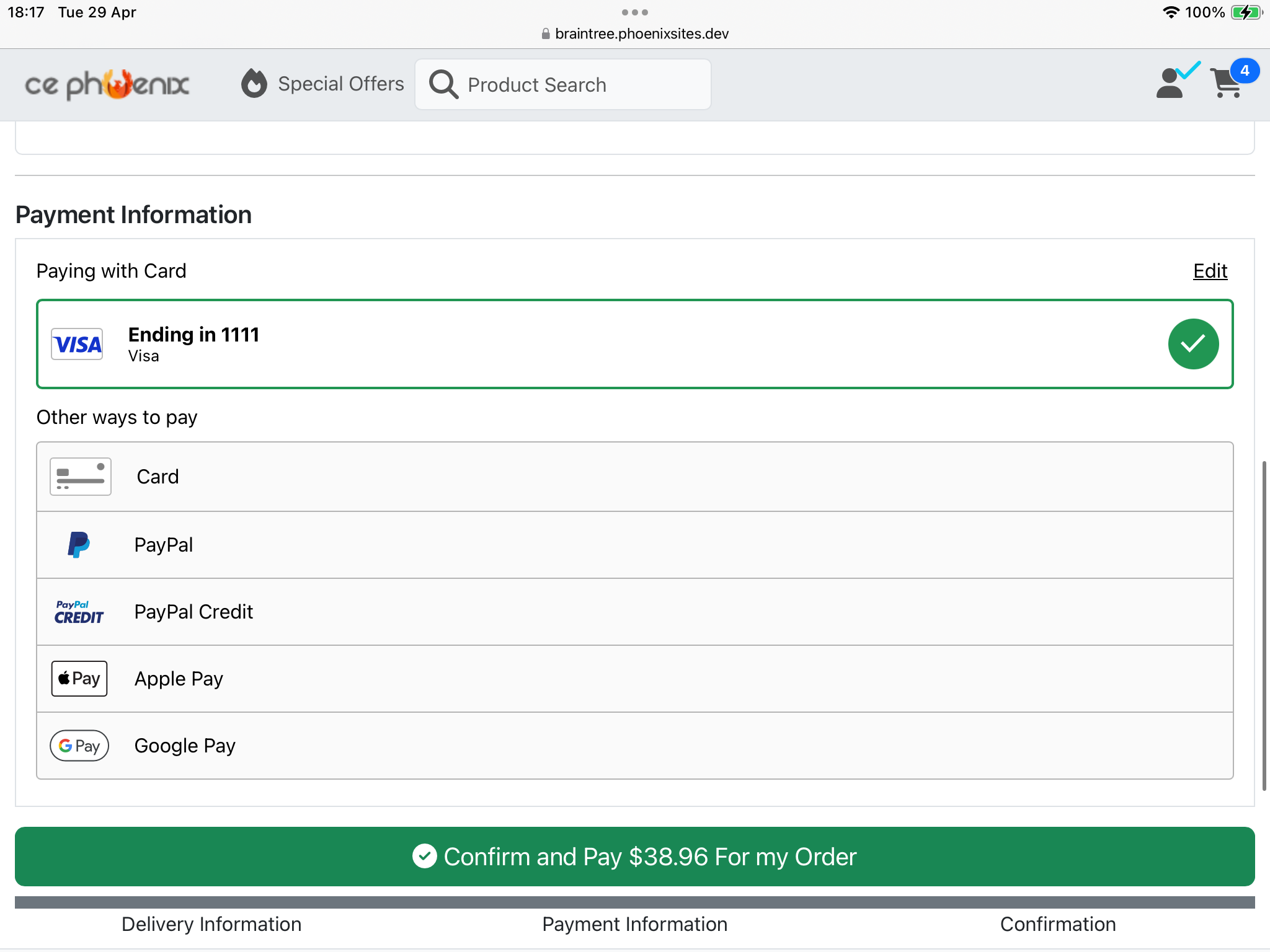
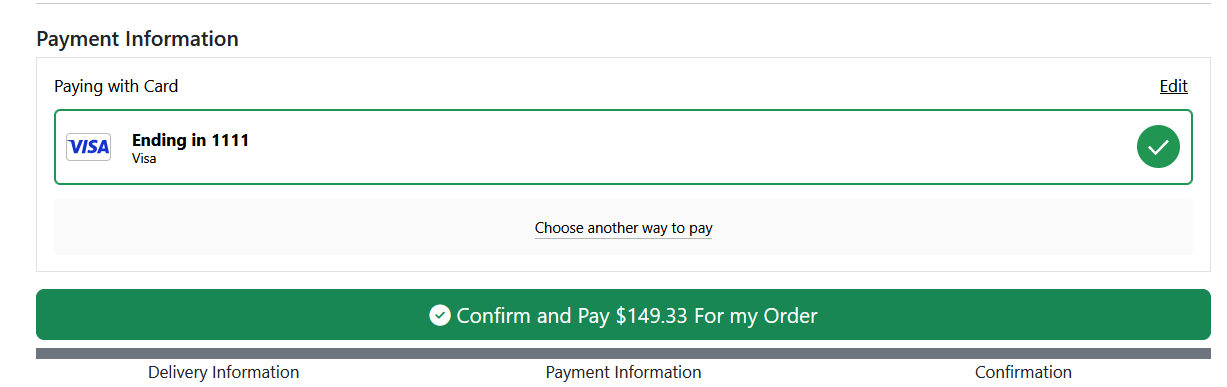
- most of the payment options have to be configured in your Braintree account AND turned on in the module before they appear in checkout
- Apple Pay and (to a lesser extent) Google Pay only appear in checkout on a device that supports them
- if connecting more than one site to your Braintree account, make sure to set the Site Prefix or you'll get in all sorts of mess
Settings
Transaction Server, Public Key, Private Key, Merchant ID
If you wish to test your checkout with Braintree payments you can use their sandbox to conduct transactions using test card numbers and Google Pay, and with a bit of setup to link Braintree and Paypal sandboxes also Paypal and Venmo. Whilst it's actually possible also to run Apple Pay in test mode through the sandbox, you need to subscribe to an apple developer account for $79/£79 so I just test a low value transaction in live instead.
Depending on your choice of Transaction Server (Live/Sandbox) you need to have copied the corresponding set of keys from your Braintree account: Public Key, Private Key and Merchant ID.
Merchant Currencies
This will be empty until you have saved a working set of keys, then it will be populated automatically from your Braintree account so it's a good check that your key settings are correct.
Transaction Method
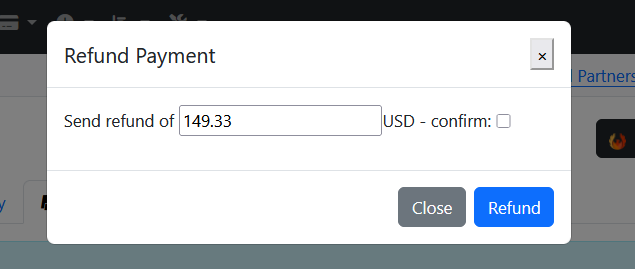
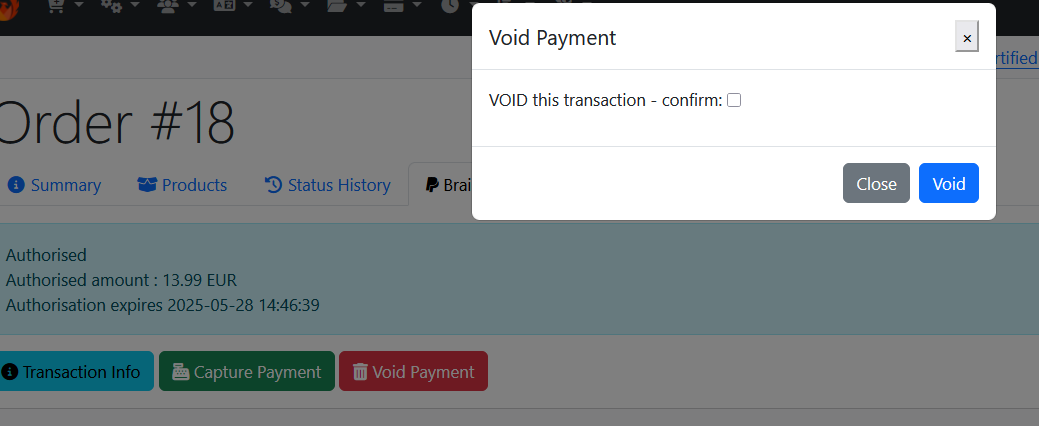
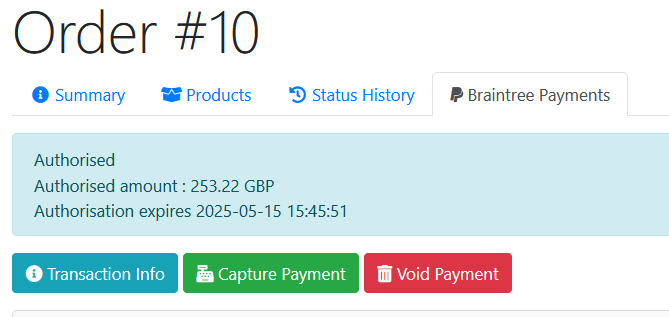
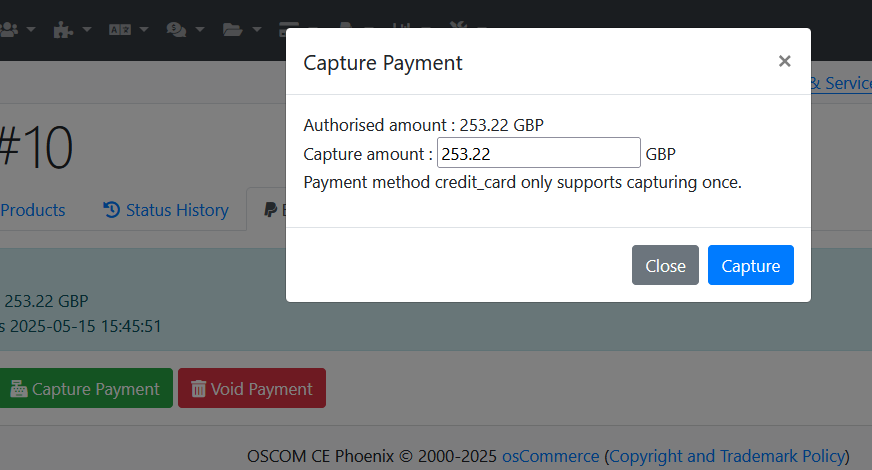
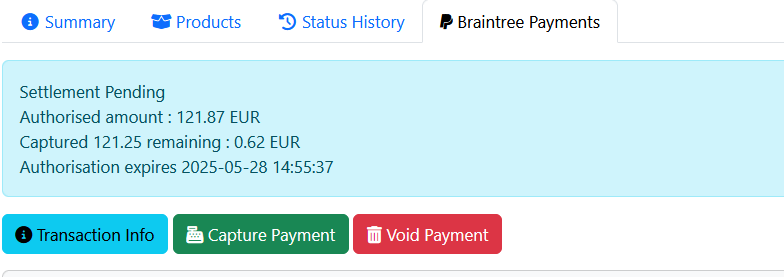
Capture means send the payment for settlement straightaway, while authorize waits until you send it for capture after checking that stock is available. When payment method is Paypal or Venmo you can take multiple partial captures, with other methods you can only send once for settlement.
Offer Cards, Google Pay, Paypal, Paypal Paylater, Venmo, Apple Pay
Your Braintree account by default only has Cards enabled - enabling them in the module does nothing unless they are enabled in the account.
Override Braintree Brand
This overrides the business name set up in Braintree and can be used to make it easier for customers to recognise transactions if the name on your website bears no relation to the name in Braintree
Order Statuses
The module creates status entries for the possible stages in the order/payment lifecycle. A few of them are set automatically but mostly it's left to site admin when managing the payments and order to set the appropriate status.
Confirmation Button
The module's javascript uses a class on the confirmation button to select it and ensure that the correct processing happens. If you have removed the btn-success class from the button, make sure there's a class on the button that's unique on the page and enter it here instead. If necessary add a new class to the button for this purpose (e.g. btn-paynow).
Bypass Module Order Creation
[Phoenix Variant] The module creates orders in normal circumstances, instead of using the system segment but calls the same hooks so customisation you have added should still work fine. If however the core code has been updated instead of using hooks you can set this to True and the normal order creation can be used.
[234BS Variant] Use this setting if you have customised order creation in checkout_process, or you can use the hooks built into this addon to customise it without the risk of it being overwritten in an update - ask for instructions if needed.
Unsupported Currency Error
Only relevant if you have different currencies available in your store and Braintree account. It whether an error is shown if the currency of the customer is not supported in Braintree.
Debug Logging
Turn on only for debugging - it gets BIG. Writes stuff to your error log file.
Site Prefix
If you have more than one site linked to Braintree, make sure to set this so you don't get clashes/confusion between order ids and customer ids from different sites.