Settings
Transaction Server: Live v Test
This setting toggles your module between the Live and Test endpoints in stripe. Against the live endpoint you use real payment methods which actually take money, while in test money is not taken but real card and bank details don't work and to get a successfully authorised transaction you need to choose from prepared methods. The details of these can be found here (be careful to choose those applicable for your region):
https://stripe.com/docs/testing#regulatory-cards
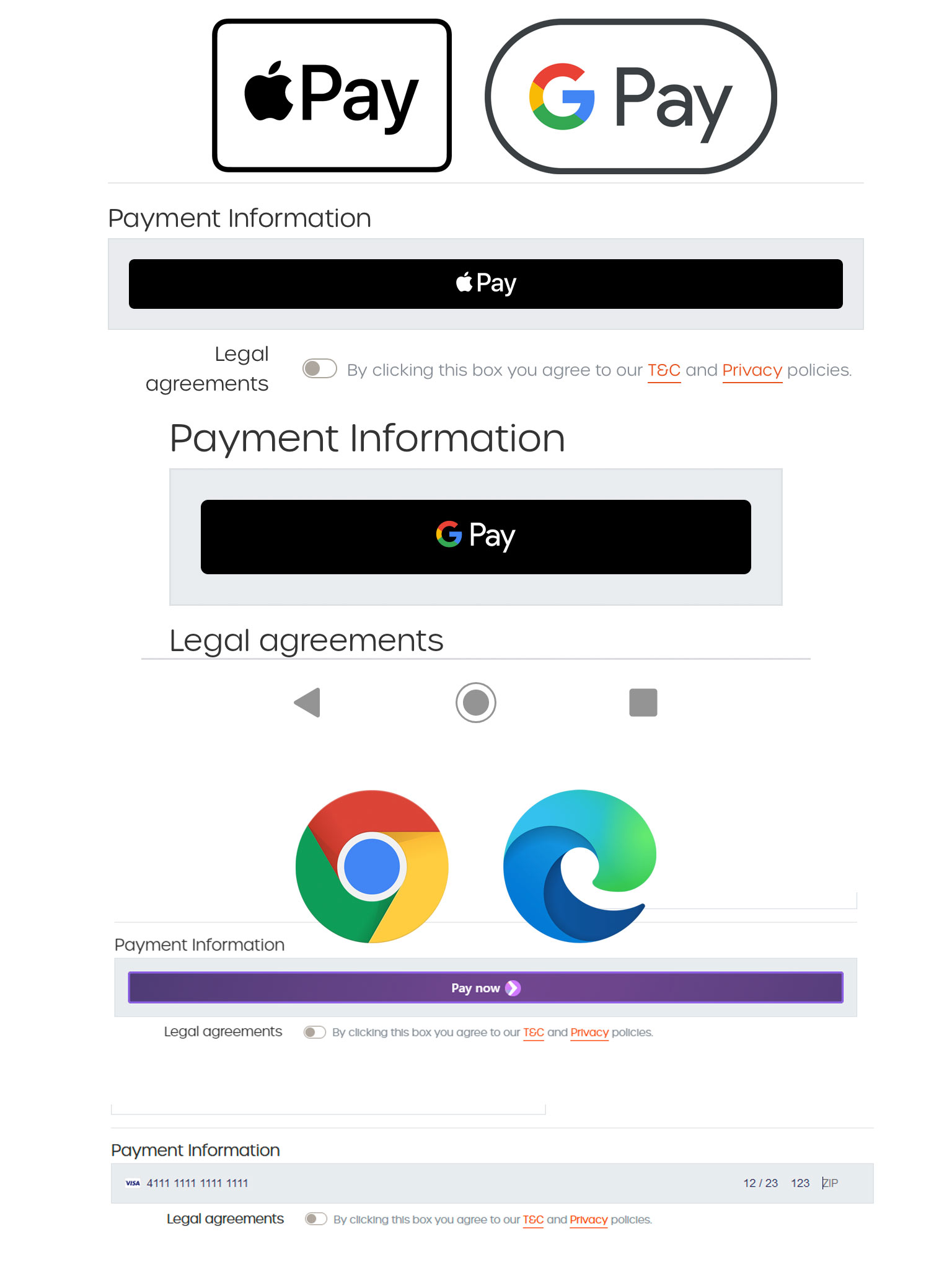
PLEASE NOTE - I could only get test transactions to work using the fallback card method and not with googlepay, applepay or even the saved browser cards in chrome or microsoft edge. I think this is because you need to set up developer accounts and then I had further issues due to not being in the US so in the end I decided life is too short! They work fine with live data.
Testing tip - if you have cards saved in Edge and Chrome and want to try out the card input payment method, use Firefox which doesn't support saving cards.
API Keys
For your live keys, go in your stripe account to Developers / API Keys. Copy your publishable key and create a secret key and copy it. If you don't copy the secret key on creation, you'll need to create another.
For test keys, click on the toggle View Test Data, then go back to Developers / API Keys
Check the order status settings are what you want and confirm.
Applepay Registration
This normally requires some faffing around registering with Apple, generating files and copying them around but this has been done for you. Having saved your Live API settings, go back into Edit settings and hit the Register Shop Domain with Apple button. This feature requires you to have copied .well-known into the right place and it will whinge if you haven't.